![trace-logo-full-colour-rgb-1878px@72ppi.png]](https://trace.weareisla.co.uk/hs-fs/hubfs/trace-logo-full-colour-rgb-1878px@72ppi.png?height=50&name=trace-logo-full-colour-rgb-1878px@72ppi.png)
Examples of where this could be useful include:
- Multi-venue events, e.g. roadshows or sporting events
- Multi-day events, e.g. festivals
- Exhibitions, where each exhibitor is added as a separate child
- Conferences with satellite activities happening at separate venues or on different days - e.g. dinners, activations or education sessions
- Large scale builds, when it makes sense to measure the build phase separately to the event
- A suite of events for a single client, where integrated reporting is required.
Suppliers need to be invited to each event they are contributing to, as they cannot see Child events by default when added to the Parent.
Creating Child events
To create a Child event, you must first create the Parent event.
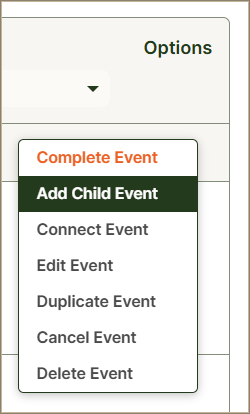
Once set up, find the Parent event in your Event Management screen, then use the drop down menu to 'Add Child Event'.
The metadata (e.g. dates, location etc.) of the Child event are copied from the Parent, but can all be changed as appropriate.
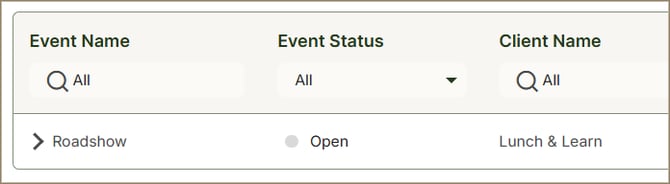
Parent events are indicated in the Event Management page by the > indicator:
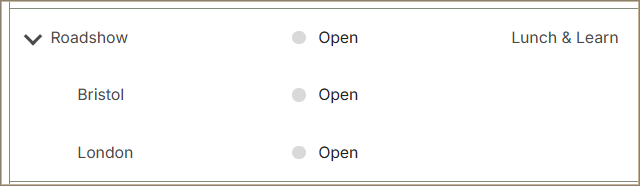
You can enter module data in the Parent event, or leave it empty and only add data to the associated Child event(s), as required.
Parent/Child Event Reporting
When viewing the Parent Event on the Single Event Dashboard, you'll be able to 'Include Child Events' or 'Exclude Child Events', as required.
Once selected, your report charts will show the aggregated data entered / accepted in both the Parent and all associated Child event(s).
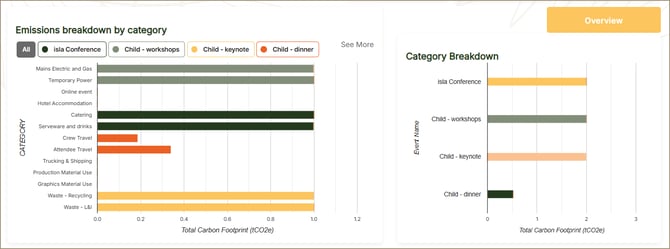
You will also see a new option; 'Breakdown by Event'.
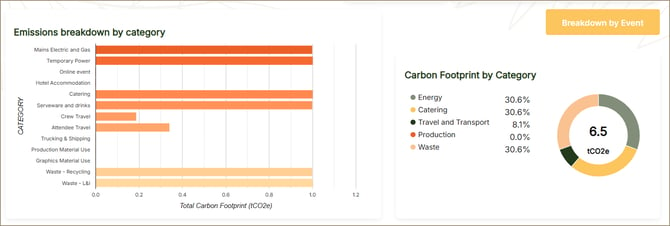
This button toggles to a view which separates out the events for easy comparison, pictured below;
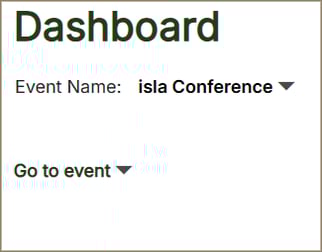
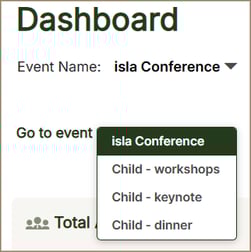
You can navigate to the Parent data, or to a particular Child event, via the 'Go to event' dropdown on all family Single Event Dashboards:
Note: the Combined Events dashboard only shows Parent events. In this view, each Parent includes all associated Child event data.
Attendee Numbers
By default, the total attendees is the sum total of all attendees entered into both Parent and Child events. This covers roadshow-type scenarios, where the attendees will be different at each Child event.
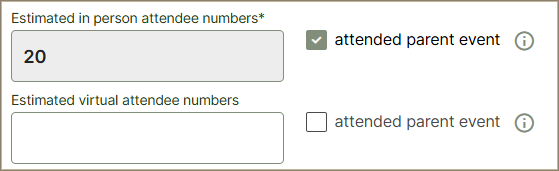
However, if your Child event includes all or some of the attendees from the Parent event, then select the 'attended parent event' tickbox on the Child Event metadata page.
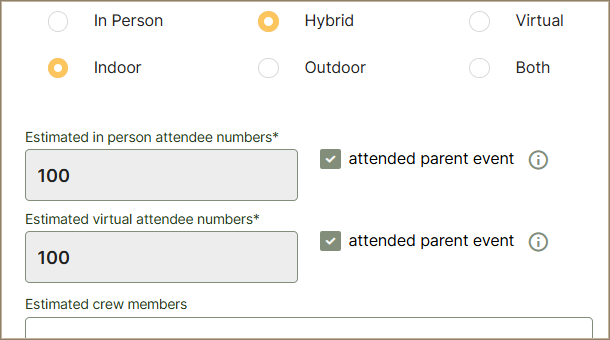
This will mean that the Parent event's attendee numbers will be used when calculating average emissions/waste per attendee.
It's important to enter this carefully, so that these averages are calculated correctly.
Examples:
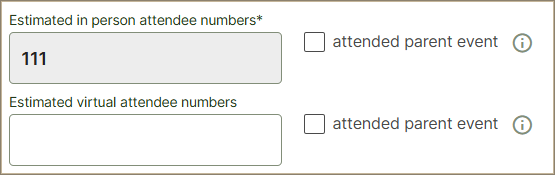
You run 3 roadshows, and 111 people attend each one. The roadshows are measured as Child events in TRACE.
Total attendees: 333
Parent = 0, Roadshow A = 111, Roadshow B = 111, Roadshow C = 111
The 'per attendee' averages for the overall event will be calculated for 333 attendees. Each roadshow's unique emissions can be seen on its own dashboard, averaged for 111 attendees.
You run a conference for 100 people. As part of the day, there's a working lunch for 20, and a conference dinner for 70. These are measured as Child events.
Total attendees: 100
Parent = 100, Lunch = 20 (included in Parent), Dinner = 70 (included in Parent).
The 'per attendee' averages for the overall event will be calculated for 100 attendees. You can also see the Lunch emissions (average for 20 people) and Dinner emissions (average for 70 people) on the separate Child event dashboards.
If you have any feedback, or would like to suggest further improvements / changes to this feature, please contact us directly at support@traceyour.events.