![trace-logo-full-colour-rgb-1878px@72ppi.png]](https://trace.weareisla.co.uk/hs-fs/hubfs/trace-logo-full-colour-rgb-1878px@72ppi.png?height=50&name=trace-logo-full-colour-rgb-1878px@72ppi.png)
Steps are explained as below;
1. Download a copy of the Employee Commuting Data Collection Form. Save this copy to a shared folder in your drive, where you can access it easily.
2. Publish the form and share the responder link to your employees. Ensure they know to complete the form monthly, as required.
3. Once published, under 'Responses' tab, select 'Link to Sheets'. Create a new Google Sheet, where responses will be linked. Make sure this sheet is saved in the same shared drive folder as the form, for ease.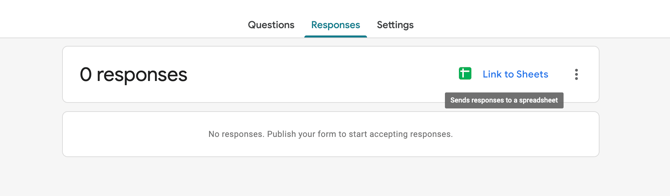
4. Download a copy of the TRACE Employee Commuting Data Collection Form Template. Save this to the same shared drive folder.
5. Once saved, open the template and follow the instructions on the first tab. This includes;
> Enter the URL of the linked Google Sheet form (where employee responses are collected) in the 'B2' cell on the 'Instructions' tab.
> Enter the exact name of the first tab (likely 'Form responses 1') in the 'B3' cell of the 'Instructions' tab.
> Hover over the cell 'A6' to 'Allow Access' to the linked sheet.
6. View the second tab, labelled 'Commuting Data (PASTE INTO TRACE)'. This is where your employee commuting data will appear, as it comes in. Search by the relevant month, and copy and paste directly into the TRACE platform by highlighting the relevant cells, 'copying' the data, and 'pasting' into the top right box in TRACE. A short video is shown below;
For any questions, contact the TRACE support team at support@traceyour.events.