![trace-logo-full-colour-rgb-1878px@72ppi.png]](https://trace.weareisla.co.uk/hs-fs/hubfs/trace-logo-full-colour-rgb-1878px@72ppi.png?height=50&name=trace-logo-full-colour-rgb-1878px@72ppi.png)
1. Create your event or click into an existing event (For tips on creating an event, click here).
2. Click 'Manage Suppliers'.
3. Enter the following details for each supplier;
- Supplier Name.
- Supplier Email Address. We recommend using a generic 'info@' email, so that different contacts from the same supplier company can access the platform.
- Measurement Modules. Select which modules you need the supplier to input data for from the drop down. (For tips on which modules to select, click here).
- Due Date. Enter the date you need this information by. (To allow time for final energy readings and waste data, we recommend choosing a date a few days after the event ends).
4. Click 'Save Data'.
This will trigger an invitation email to be sent to the supplier's inbox, with a link for them to access their own TRACE account.
Once logged in, suppliers are able to submit data directly into your event in a personalised event management screen. They do not see any emissions calculations, event details, names of other suppliers or any other inputted data.
Supplier invitations are valid for 30 days. If the supplier does not accept the invitation, it can be resent from the 'Manage Suppliers' page.
Once a supplier has been invited, we recommend letting them know to look for an invitation email in their inbox with the subject line 'You have been invited to TRACE.'
You may also wish to share this link to the Supplier Hub which can answer any questions they have about inputting data.
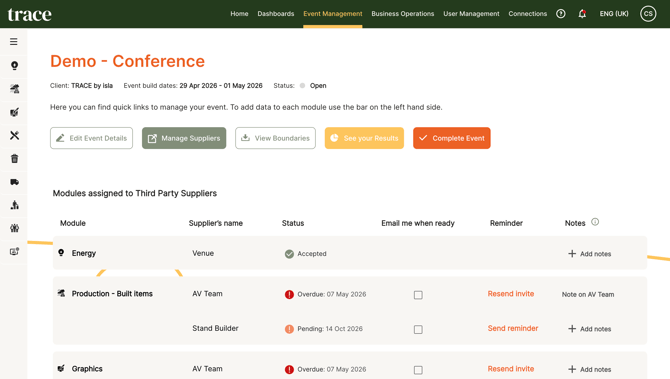
From the 'Manage Suppliers' screen, you can also:
- See the status of supplier data:
- Pending: The supplier has yet to provide data.
- Ready for Review: The supplier has submitted data, which you can now review and accept by heading to the relevant module and supplier tab in the drop down.
- Accepted: The supplier has submitted data and you have accepted the data, which will now show in your event dashboard.
- Overdue: The due date has passed and the supplier has yet to provide data.
- Turn on email notifications to receive alerts when a supplier submits data
- Resend invitations to suppliers
- Send reminder emails to suppliers
- Add notes to each supplier