![trace-logo-full-colour-rgb-1878px@72ppi.png]](https://trace.weareisla.co.uk/hs-fs/hubfs/trace-logo-full-colour-rgb-1878px@72ppi.png?height=50&name=trace-logo-full-colour-rgb-1878px@72ppi.png)
Creating an event is the first step towards measuring its environmental impact.
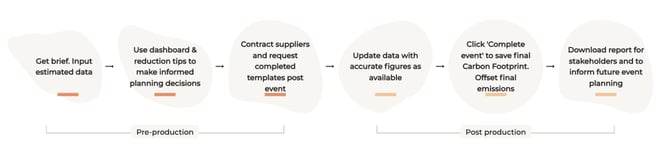
TRACE helps you estimate, measure and report your event’s carbon footprint by bringing together data from across your event lifecycle. You can begin with estimated data during the planning stage and replace it with actual data as it becomes available, helping you make informed decisions before, during and after your event.
Once your event is complete, you can finalise your measurement to create an accurate record of your event’s environmental impact, compare results over time and support your organisation’s sustainability goals.
Creating an Event
- From the main navigation, select Event Management.
- Select Create Event.
- Complete the event details.
- Select Create to open your new event.
You’ll be taken directly to the event workspace, where you can begin entering data.
Entering Data
Use the navigation menu to move between each measurement category and enter the relevant information.
Depending on your event, you may collect data for areas such as:
- Energy
- Food & Drink
- Production and Built Items
- Graphics
- Event Transport
- Travel & Accommodation
- Waste
- Online Activity
You can save your progress at any time and return to update information as more accurate data becomes available.
Reviewing Your Results
As data is entered, TRACE automatically updates your estimated carbon footprint.
The Dashboard provides:
- A breakdown of emissions by category
- Interactive charts and visualisations
- Reduction recommendations to help identify opportunities for improvement
- Progress towards a more complete measurement
You can access the Dashboard at any time by selecting Dashboard from the main navigation.
Editing Event Details
If your event information changes, you can update the event details at any time.
Depending on your permissions, you may be able to edit information such as:
- Event name
- Event dates
- Location
- Event type
- Measurement settings
Keeping your event details up to date helps ensure your reporting remains accurate.
Duplicating an Event
If you’re running a recurring event or want to compare different scenarios, you can duplicate an existing event.
Duplicating an event copies its structure and previously entered information, saving time and reducing the need to re-enter data manually.
This can be particularly useful when:
- Planning annual or recurring events
- Creating estimated and final versions of the same event
- Testing different event scenarios before confirming final plans
After duplicating an event, review the copied information and update it where necessary before beginning your measurement.
Closing an Event
Once your event has taken place and you’ve entered all available data, you can close the event.
Closing an event creates a final record of its environmental impact using the latest available data. This allows you to:
- Produce final sustainability reports
- Compare performance across events
- Track progress over time
- Support your organisation’s carbon reduction goals
Before closing an event, we recommend checking that:
- All relevant modules have been completed
- Supplier information has been received where possible
- Estimated data has been replaced with actual data where available
- The Dashboard has been reviewed for completeness
Cancelling an Event
If an event is no longer taking place, you can mark it as Cancelled.
This keeps a record of the event in TRACE while clearly indicating that it did not go ahead.
Deleting an Event
If an event is no longer required, you can permanently delete it from TRACE.
Please note: Deleting an event permanently removes the event and all associated measurement data. This action cannot be undone.
We recommend only deleting events that were created in error or are no longer needed.